Welcome to SunCity Battle
SunCity Battle (SCB) is a web-based platform designed to manage breaking (breakdancing) championship events from start to finish — registration, brackets, judging, live scoring, and results.
This guide is written for everyone involved in a breaking event — whether you're an administrator setting up a championship, a judge scoring battles, a participant competing, or a spectator watching live results. No technical knowledge is required.
Roles on the Platform
Creates events, manages everything
Scores battles and picks winners
Registers and competes
Watches live results
Getting Started
Accessing the Platform
Open your web browser (Chrome, Firefox, Safari, or Edge) and go to:
https://your-domain.com/
Creating an Account
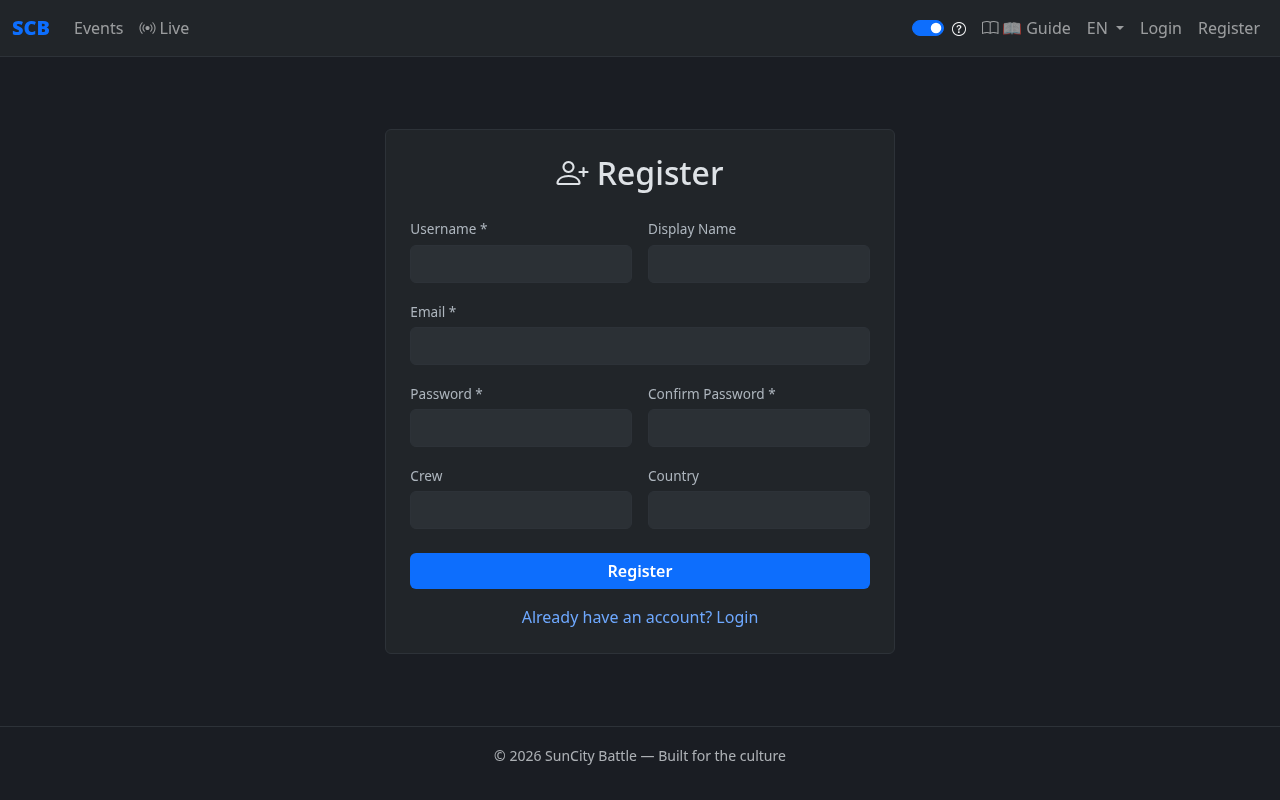
- Click "Register" in the top-right corner of the navigation bar.
- Fill in your username, display name, email (required), and password. You can also add your crew name and country.
- Click the "Register" button to create your account.
- Check your email for a verification link — click it to verify your account.
- Log in with your new credentials.
Logging In
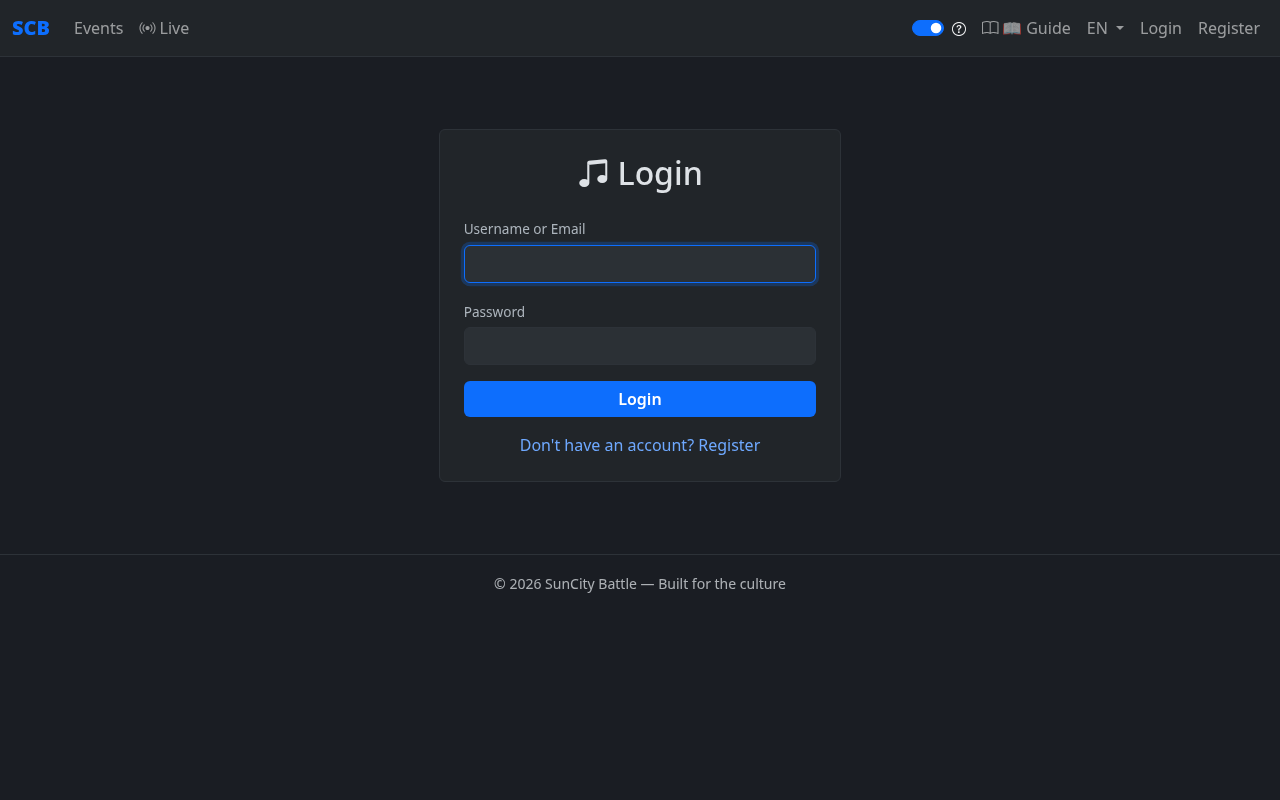
- Click "Login" in the top-right navigation.
- Enter your username and password.
- Click the "Login" button.
Understanding the Home Page
After logging in (or even as a guest), you'll see the home page listing all upcoming and current events.
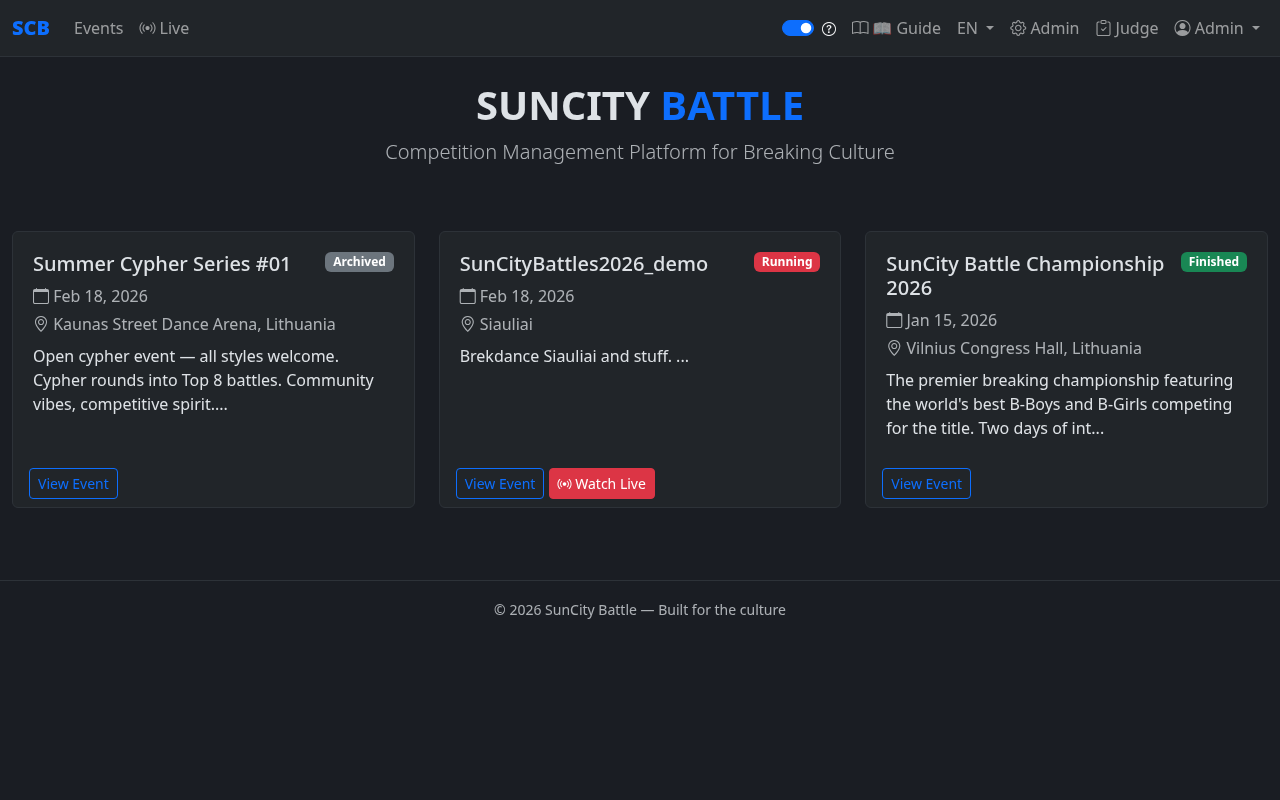
From here you can:
- Browse available events
- Click an event to see details, categories, and register
- Access live battle views
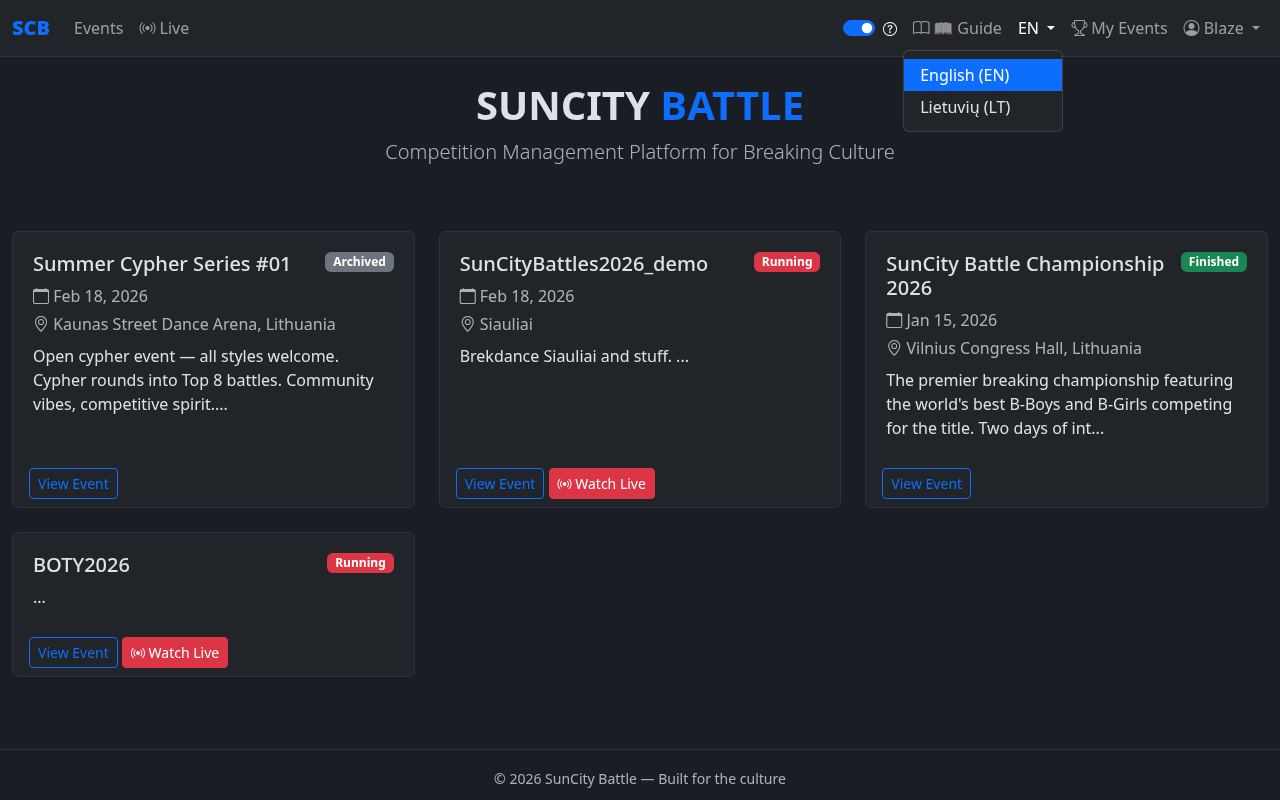
- Switch between English and Lithuanian using the language dropdown
Navigation Bar
When logged in, the top navigation bar shows additional links:
- My Events — View your participation history across all events
- Your Name ▾ — A dropdown menu with links to My Profile, Change Password, and Logout
Account Registration & Email Verification
Creating an account on SCB is quick and straightforward. Your account lets you register for events, track your participation history, and manage your profile.
Registration Form
The registration form includes the following fields:
- Username * — Your unique login name (cannot be changed later)
- Display Name — How your name appears on the platform (your dancer name / alias)
- Email * — Required for account verification and password recovery
- Password * and Confirm Password * — Choose a secure password
- Crew — Your crew name (optional)
- Country — Your country (optional)
Email Verification
After registering, you'll receive a verification email at the address you provided.
- Check your inbox (and spam/junk folder) for the verification email.
- Click the verification link in the email.
- Your account is now verified — you can log in and use all features.
Your Profile
Your profile page lets you view and edit your personal information. Access it from the user dropdown menu in the navigation bar → My Profile, or go directly to /profile.
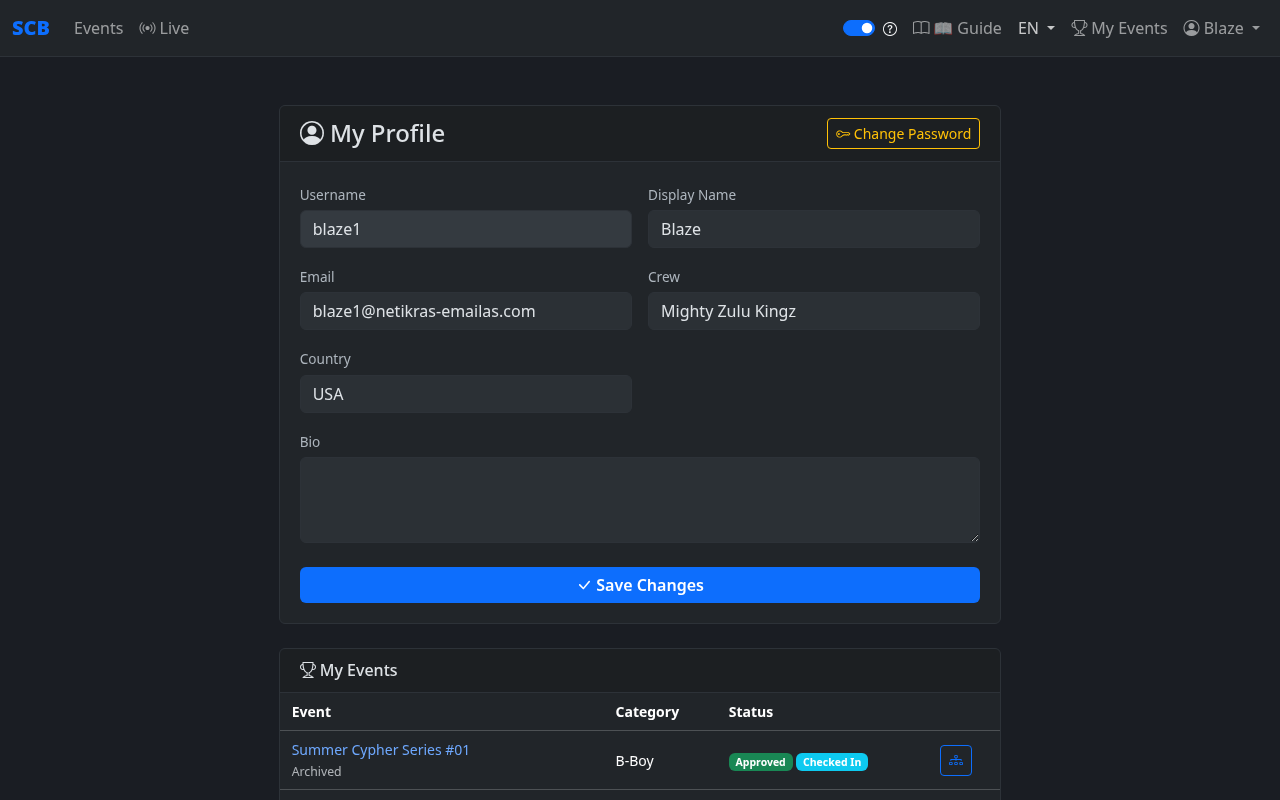
Editable Fields
- Username — Displayed but cannot be changed
- Display Name — Your dancer alias / stage name
- Email — Your contact email
- Crew — Your crew affiliation
- Country — Your country
- Bio — A short description about yourself
Click "Save Changes" to update your profile.
Locked Fields (Active Events)
When you are registered in an event that is currently running (live), some profile fields may be locked to prevent changes that could affect your event registration. Locked fields appear grayed out and cannot be edited until the event is finished or archived.
Change Password
Click the "Change Password" button in the top-right corner of your profile page to navigate to the password change form. See Password Management for details.
Password Management
Changing Your Password
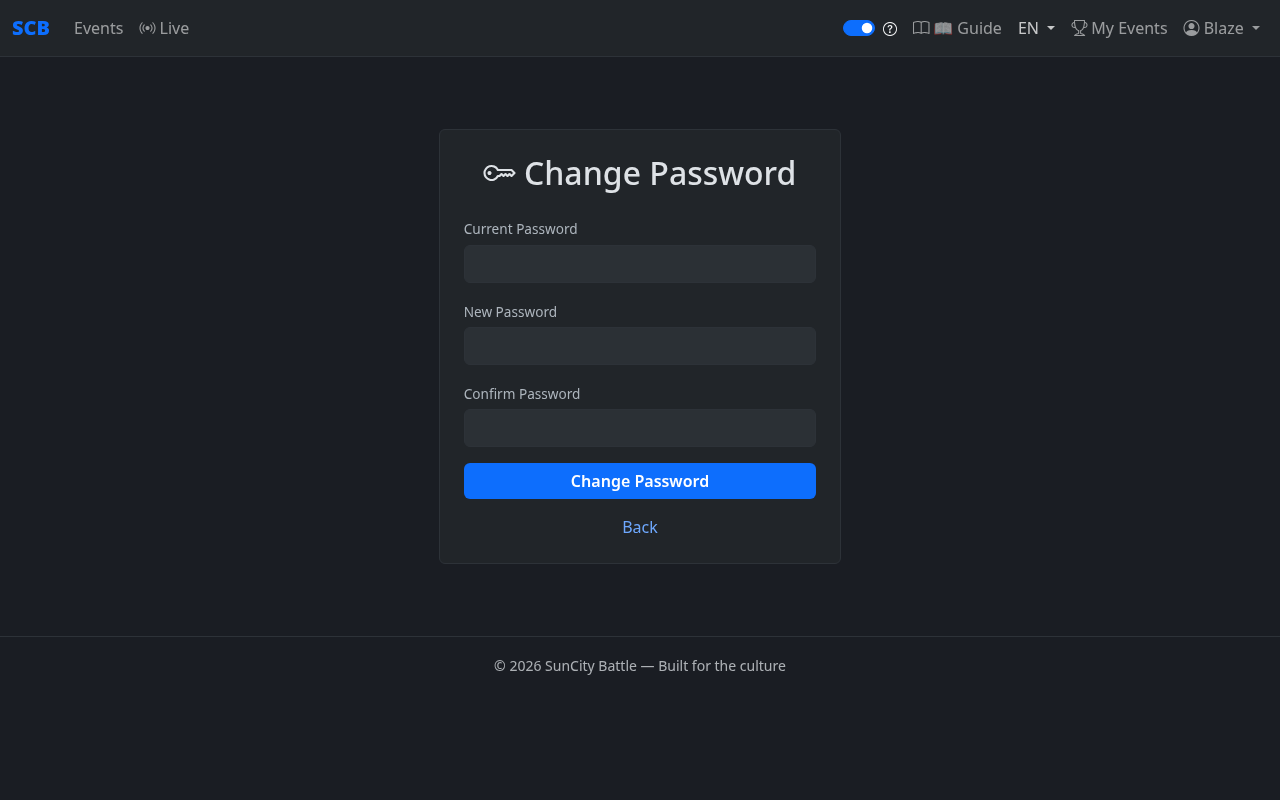
To change your password while logged in:
- Go to your Profile page and click "Change Password", or navigate directly to
/profile/password. - Enter your current password.
- Enter your new password and confirm it.
- Click "Change Password" to save.
Forgot Your Password?
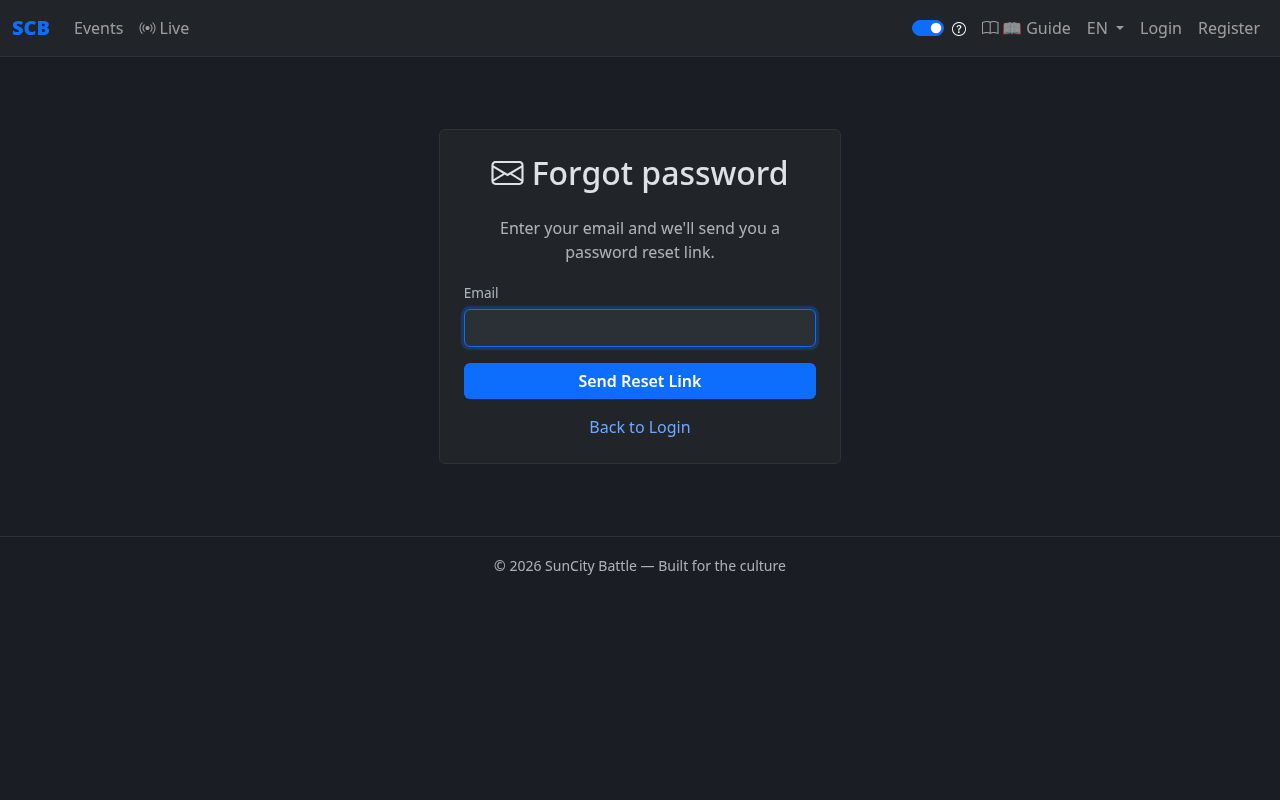
If you've forgotten your password, you can reset it via email:
- Go to the Login page.
- Click the "Forgot Password?" link.
- Enter the email address associated with your account.
- Check your email for a password reset link.
- Click the link and set a new password.
Browsing Events
Click on any event from the home page to see its full details — date, location, categories, and registration status.
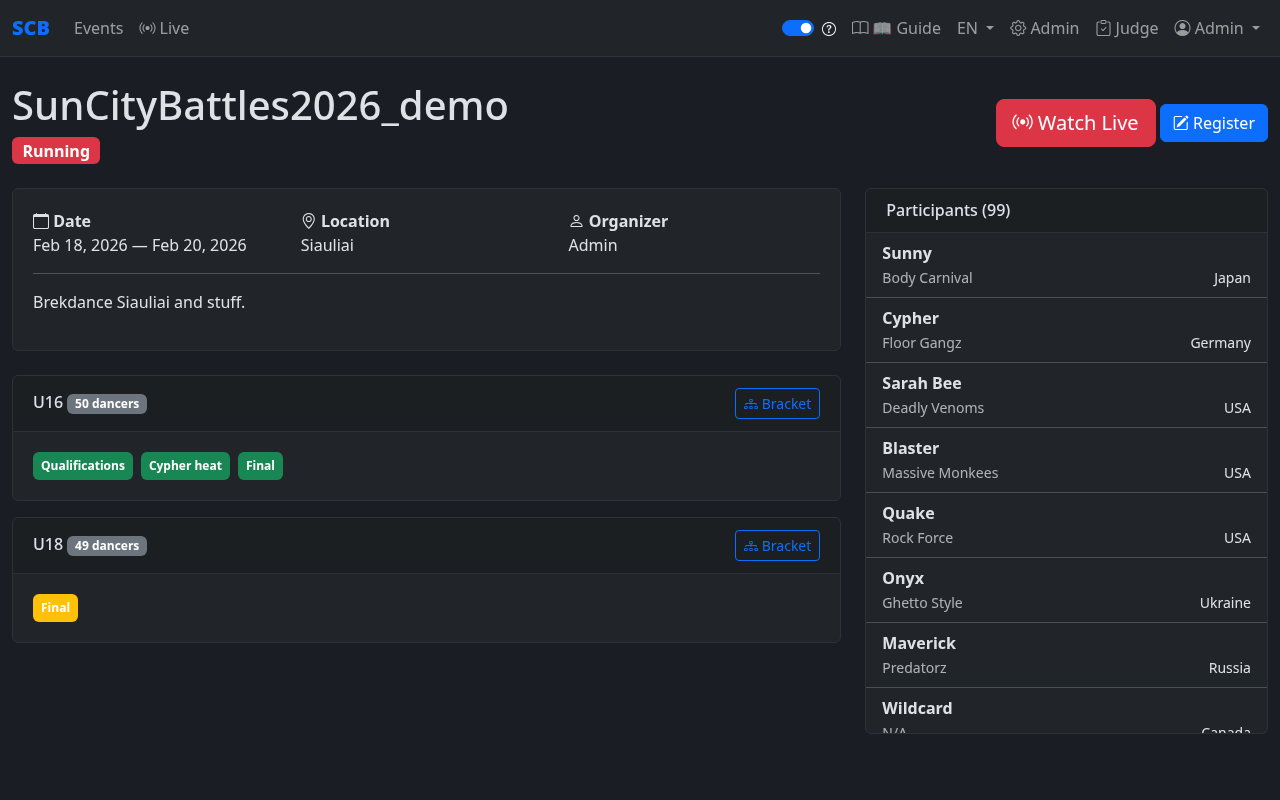
From the event detail page you can:
- See all available categories and participant counts
- Register for categories (when registration is open)
- View brackets and results (when the event is running or finished)
- Access the live view for real-time battle updates
Registering for Events
How to Register
- Open the event you want to join.
- Click the "Register" button on the event page.
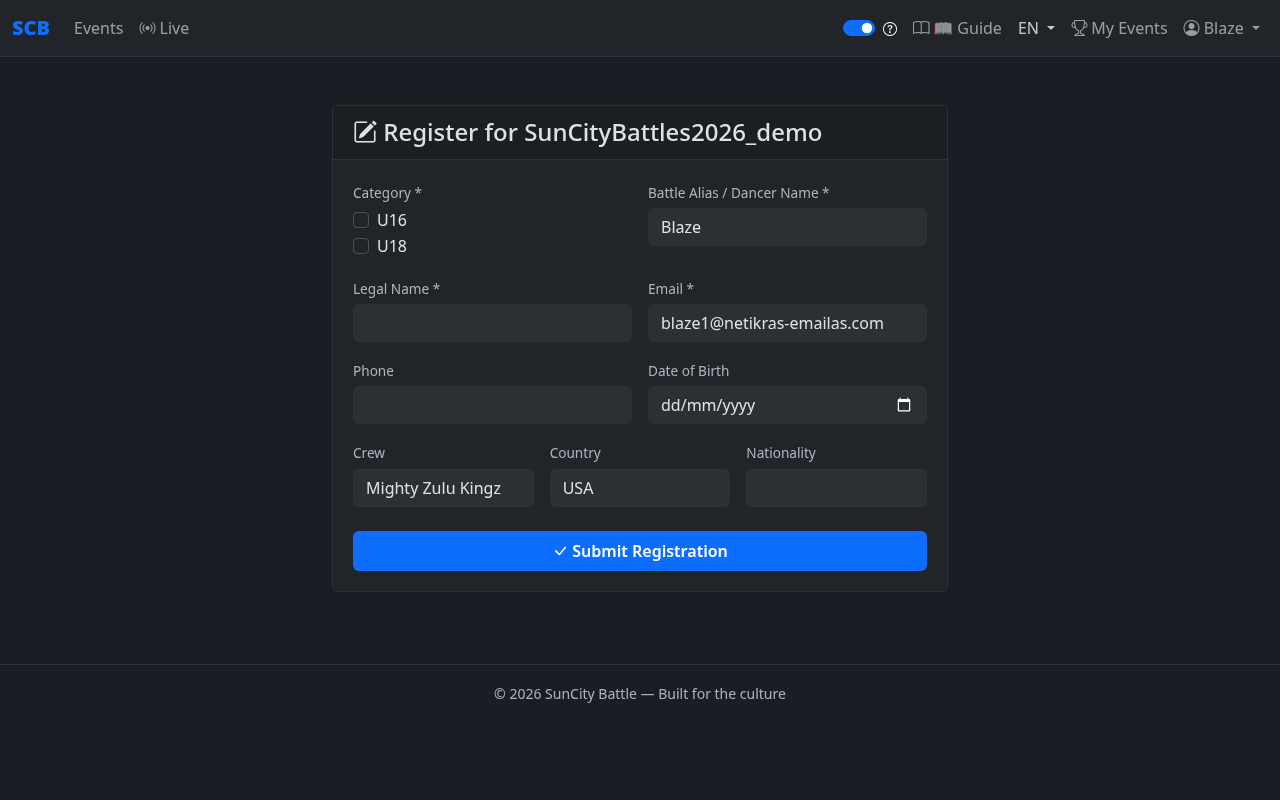
- Select the category you want to compete in (e.g., B-Boy, B-Girl, Crew).
- Fill in the registration form. If you're logged in, your details (dancer name, email, crew, country) will be pre-filled from your profile.
- Click "Submit Registration" to send your registration.
Already Registered?
If you've already registered for a category, the registration form will show which categories you're already signed up for. You won't be able to register for the same category twice.
Registration Status
After registering, your status will be one of:
- Pending — Waiting for organizer approval
- Approved — You're confirmed for the event
- Rejected — Your registration was denied (e.g., category is full)
- Checked In — You've been marked as arrived on event day
My Events / Participation History
The My Events page shows your complete participation history across all events. Access it from the "My Events" link in the navigation bar.
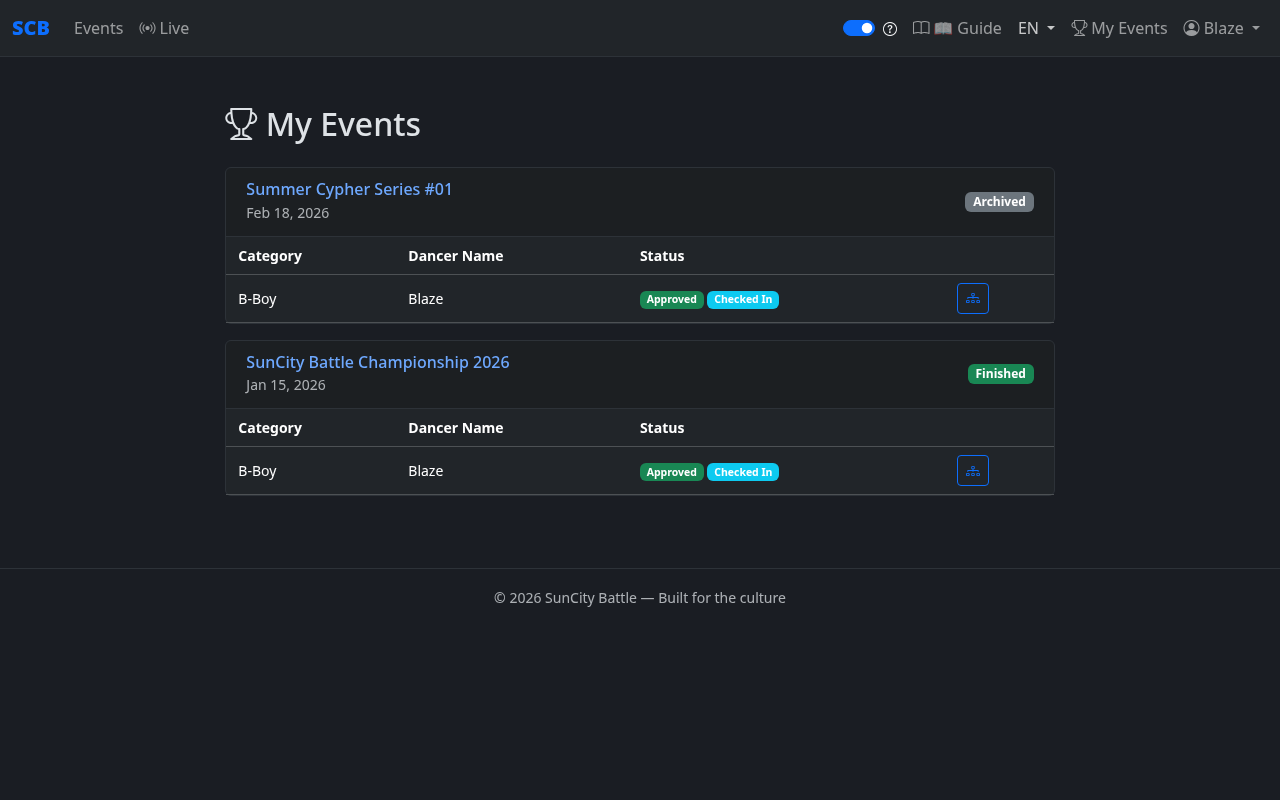
For each event, you can see:
- Event name — with a link to the event detail page
- Event date and current status (Running, Finished, Archived)
- Categories you registered for
- Your dancer name used for that event
- Registration status — Approved, Checked In, etc.
- Bracket link — quick access to view your bracket placement
Viewing Brackets & Results
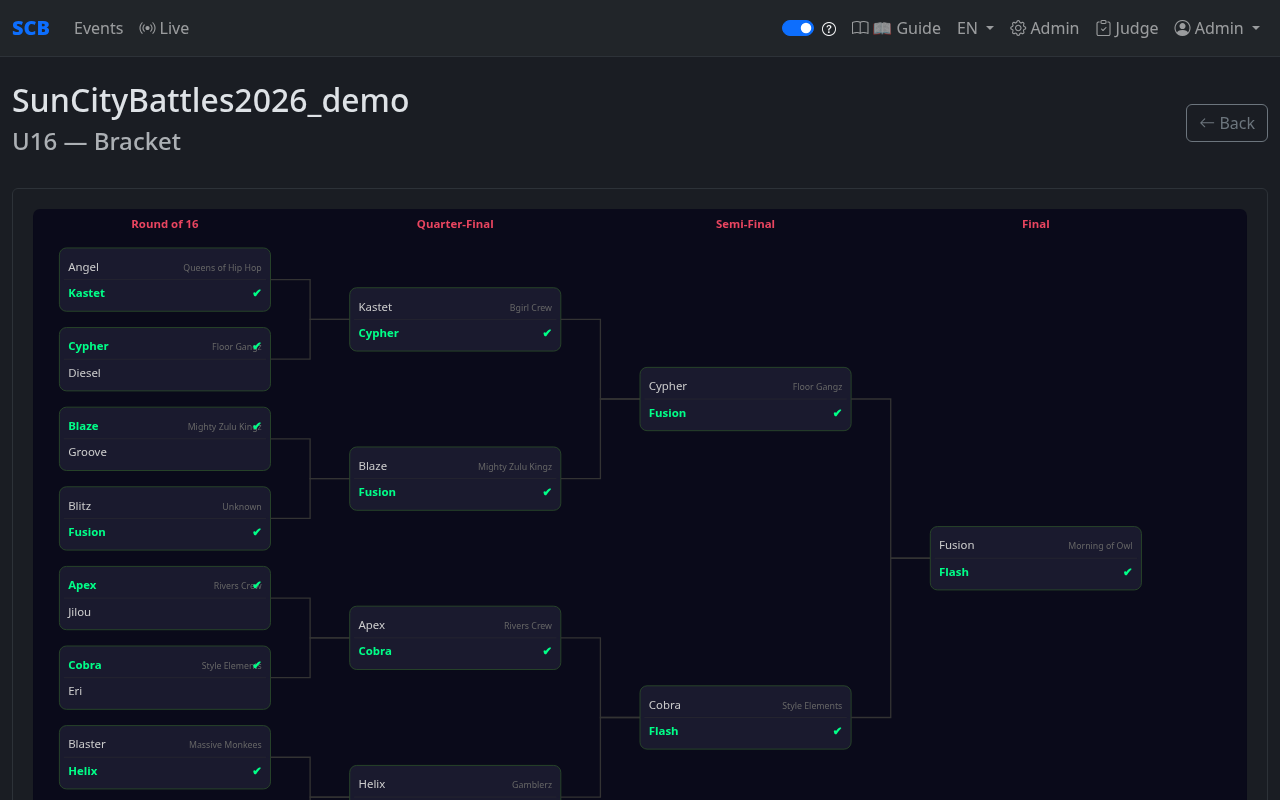
Once an event starts and brackets are generated, you can view the tournament bracket to see match-ups and track progress.
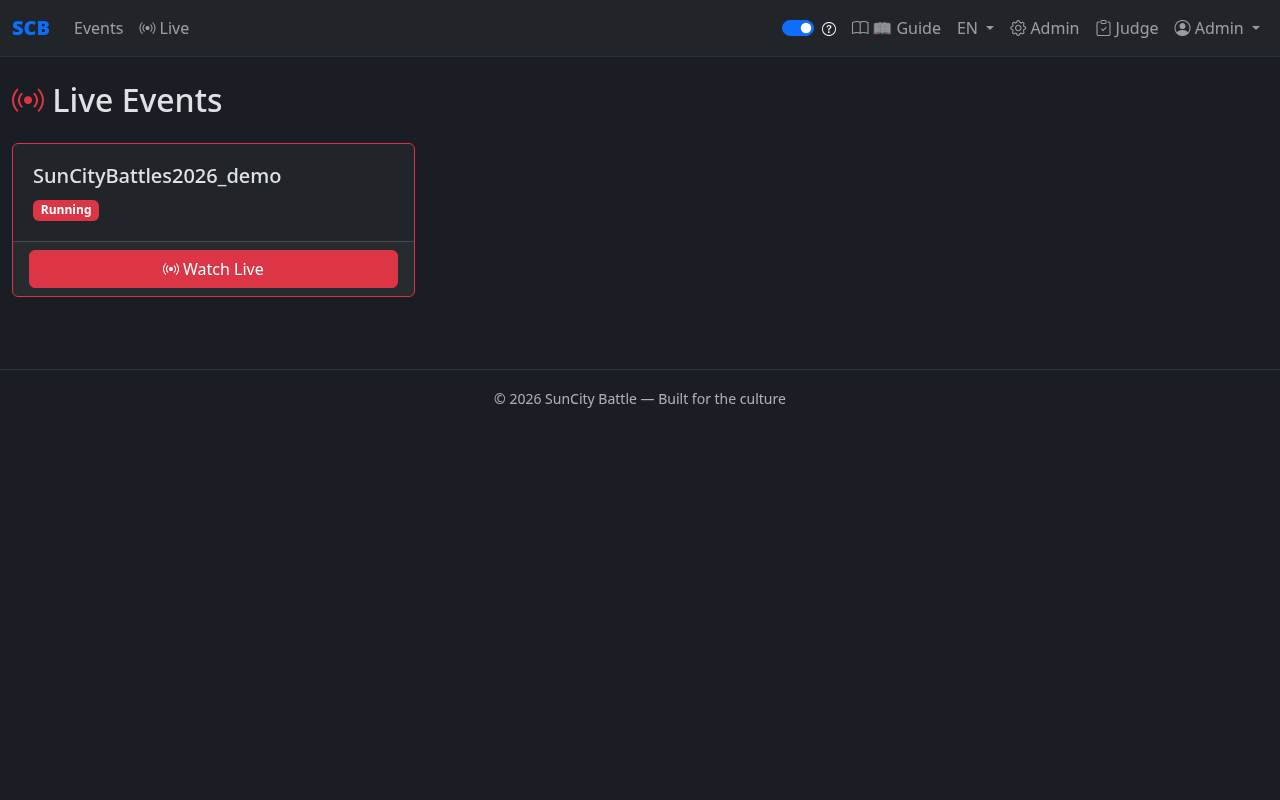
For real-time updates during battles, visit the Live page (click Live in the top navigation).
What to Expect on Battle Day
- Arrive early — you'll need to check in with the organizers.
- Check-in — the organizer will mark you as checked in on the platform. If you don't check in, you may be replaced or given a walkover (automatic loss).
- Watch the brackets — use your phone to follow the bracket page and see when your battle is coming up.
- Battle! — when your name is called, step up and compete.
- Results — scores appear on the platform shortly after each battle.
Live Viewing Guide
This section is for spectators, stakeholders, and anyone watching the event — in person or remotely.
How to Access the Live Page
- Open your browser on your phone or laptop.
- Go to
https://your-domain.com/live - Select the event you want to follow.
- No login required!
What the Displays Mean
- Current Battle — Shows who's battling right now. The battle card takes full width with large, easy-to-read names. A subtle background image adds atmosphere.
- Round Results — Green and red dots below each participant show round wins and losses at a glance. Round badges display dancer nicknames instead of generic "RED"/"BLUE" labels. Active round badges are highlighted in yellow with a white border and are slightly larger for visual emphasis, while completed/pending rounds appear in gray.
- Scores — As judges submit votes, you'll see the results appear.
- Auto Bracket — When no battles are currently live and a phase is running, the tournament bracket automatically displays using a responsive SVG that scales to fit any screen. Winners are marked with a green ✔ checkmark. When a battle goes live, the bracket hides and the battle card appears.
- Phase indicator — Shows which stage of the tournament you're in (Top 16, Semifinal, etc.).
Projector Mode for Venue Screens
If you're setting up a display at the event venue:
- Open the live page on a laptop connected to a projector or TV.
- Click the "Projector Mode" or full-screen button.
- The display will auto-update as battles progress — no interaction needed.
The projector view is optimized for large screens:
- Slim info bar fixed at the bottom of the screen for a clean look.
- Bracket auto-displays between battles — no manual switching.
- Projector language can be set independently by the admin.
Frequently Asked Questions
Glossary
Key terms used throughout the platform:
| Battle | A head-to-head competition between two participants (or crews). The core unit of a breaking championship. |
| Bracket | The tournament tree showing all match-ups and how winners progress through phases to the final. |
| BYE | When a participant automatically advances to the next round without battling, usually because there's an uneven number of competitors. |
| Category | A competition division within an event (e.g., Solo BBoy, Solo BGirl, 2v2 Crew). |
| Check-in | Confirming that a registered participant has arrived at the venue and is ready to compete. |
| Cypher | A preliminary round where dancers perform in a circle. Judges observe and select who advances to the bracket stage. |
| Event | A complete championship or competition — the top-level container for categories, participants, and battles. |
| Heat | A group of battles within a phase that happen at the same stage of competition. |
| Phase | A stage of the tournament (e.g., Top 16, Quarterfinals, Semifinal, Final). Each phase has its own bracket and settings. |
| Round | One turn for each participant within a single battle (e.g., "3 rounds" means each dancer goes 3 times). |
| Seed | A ranking given to participants before the bracket is generated, ensuring top-ranked dancers don't face each other in early rounds. |
| Walkover | An automatic win given when the opponent doesn't show up, withdraws, or is disqualified. |
| Vote Mode | A judging mode where each judge simply picks a winner — no detailed scoring. |
| Criteria Mode | A judging mode where judges rate participants on customizable criteria. Defaults: technique, originality, musicality, execution, battle. Admins can change criteria and score range per category. |
| Head Judge | A designated lead judge who may have tiebreaking power or additional authority. |
| Projector Mode | A special full-screen display view designed for big screens at the event venue. |
| Tiebreaker | An extra round automatically created when judges' votes result in a tie. All judges must confirm before the tiebreaker round activates. |
| Lock Screen | A dark overlay on the judge's battle page that prevents accidental interactions. Tap "Unlock" to score, and 🔒 to re-lock. |
| Judge Notes | A personal notes area on the judge page, saved locally in the browser. Not visible to anyone else. |
| Score Audit | A detailed admin view showing each judge's vote with dancer nicknames, color badges, and comments. |
| Flash Message | A temporary notification banner shown after admin actions (e.g., saving settings) that disappears on the next page load. |